
Most people who use ChatGPT or Claude use them the same way. They ask a question, read the answer and then do the work themselves.
The first session of our AI for Work webinar series looked at the next step. In that step, the AI does the work and a person checks it. The session used live demos built around a fictional marketing agency called Northpoint Creative. This article explains the ideas behind them.
From answering questions to finishing work
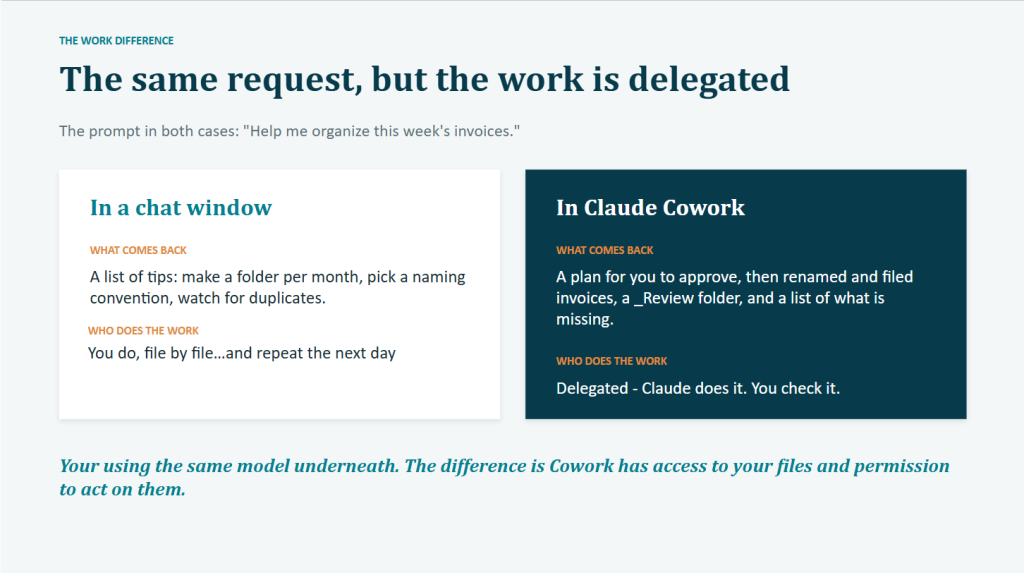
The first demo sent the same request to two places: “Help me organize this week’s invoices.”
In an ordinary chat window, the answer was advice. It suggested a folder for each month, a naming convention and a check for duplicates. Someone still had to do all of that by hand.
In Claude Cowork, the answer was the work itself. Cowork is the part of Claude that can work with the files on your computer. It looked inside the invoice folder, proposed a plan and waited for approval. Then it renamed and filed the invoices.
Both Claude and Cowork use the same AI model. The difference is what is delegated and what the model is allowed to do. In Cowork, you can delegate Claude to open the files in the folder, and it has permission to rename and move them.
That difference raises three practical questions. What does the AI need to be told? What can it reach? And when does it start working? The rest of this article takes them one at a time.
The five things to include when you hand off work
A good way to write any request is to picture a capable new hire on their first day. The question is what they would need to know, and the answer usually has five parts.
Here is how the five parts look for one everyday task, a weekly status report for a product team. This example is separate from the demos.
- The result. This is the finished thing and its format. For the status report, that is a one-page update in the team’s usual layout, ready to post in Slack.
- The materials. These are the inputs and where they live. For the status report, they are the project tracker, this week’s meeting notes and last week’s update.
- The standard. This is what good work looks like. It can be a rule or an example. For the status report, good means following last week’s layout and starting with anything that slipped.
- The limits. These are the things the AI must not do, and the points where it should stop and ask. For the status report, the AI reads the project tracker but does not edit it. If two sources give different dates, it asks before going on.
- The exceptions. These are the things a person should decide. For the status report, a slipped customer commitment or a change in scope goes to the team lead to decide. It stays out of the update until then.
The slide below shows the prompt from the first demo. Each color marks one of the five parts.
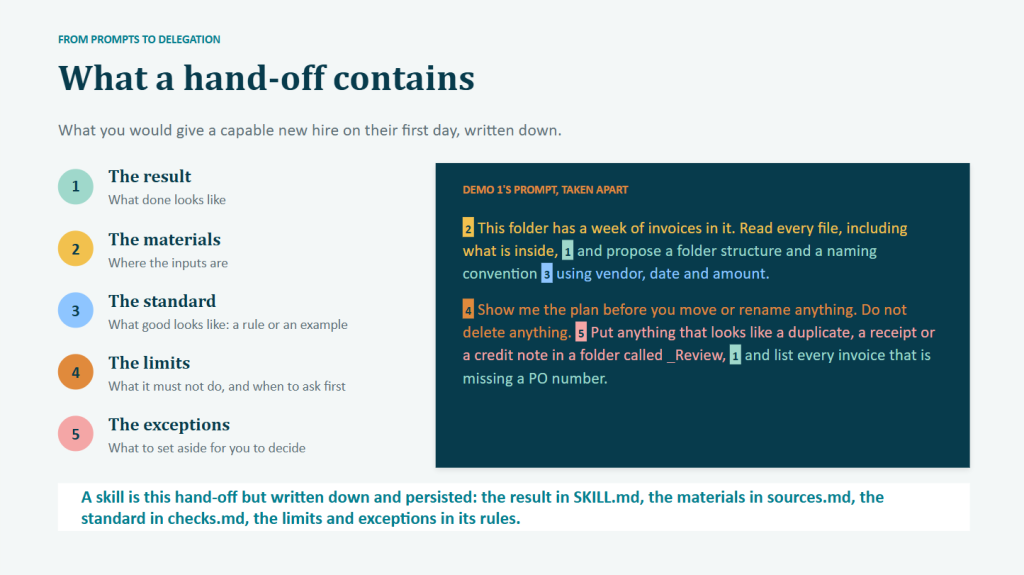
Most first attempts include the result and the materials. The limits and the exceptions are the parts people usually leave out. But often they matter most, because they’re what make it safe to let the AI work autonomously.
Familiar prompt techniques still help. Giving an example is part of the standard. Asking for a specific format is part of the result.
Saving your instructions as a skill
The second demo in the session turned three inputs into one report. The inputs were a spreadsheet, a page of notes and last month’s report. The output was this month’s accounts-payable review, the summary of bills the agency owes.
The first version needed one fix. The summary was too long, so it was cut to three sentences. That fix only lasted as long as the conversation. In a new conversation chat window, Claude would make the same mistake again.
Claude’s answer to this problem is a skill. A skill is a set of instructions that Claude keeps and reuses. It is a folder with a file called SKILL.md inside it. The file is written in plain English. It says what the task is, when to use it, how to do it and what never to do.
A skill reads like a standard operating procedure. Anyone who can edit a document can edit one, and no coding is involved. Claude loads the skill whenever the task comes up. Any fix written into the skill applies to every future run.
Skills grow as the task grows. A first skill is usually one file. Over time, facts that change often, such as prices and dates, move into a separate file. That way, a price change is a one-line edit. Larger skills also add a short card for each item they check, such as each web page or each vendor.
Our marketing team uses a skill built this way to check ODSC AI West web pages and campaigns. The take-home library from the session includes a public version for the fictional agency.
Every skill in that library follows three habits.
- Every finding says why it matters, in one sentence about money, customers or risk.
- Unverified facts are marked. Anything that depends on them is reported as needing confirmation. The skill never approves or rejects it.
- Every change has an owner and a verdict. The verdict comes from a short fixed list, such as “ready for approval,” “hold” or “needs a decision.” That turns the output into a list of decisions for named people.
Put AI to Work in New York ⚡
Join the ODSC AI NYC: AI for Work Summit, Dec 2–3, for hands-on AI workshops focused on AI agents, workflow automation, evaluation, and governance. Build practical skills for applying AI to your everyday work, whether you’re developing systems, improving workflows, or leading a team.
🎟️ Get Your Early Rate Pass — Save Up to $550
Reading this on the ODSC blog? Use code ODSCBLOG at checkout for an additional 15% off your pass.
How skills grow, and how to organize them
The part of the session that drew the most questions was how a skill changes over time. The short answer is that a skill starts small and grows only when the task needs it to.
A common mistake is to put everything into one SKILL.md file. The steps, the prices, the contact names, the quality checks and the report layout all end up in one long document. That file becomes hard to read and hard to keep up to date. A single price change means searching through the instructions to find it.
A better pattern keeps SKILL.md short and moves other material into separate files in the same folder. Each file holds one kind of information. Claude reads SKILL.md every time the task runs, and it opens the other files only when it needs them.
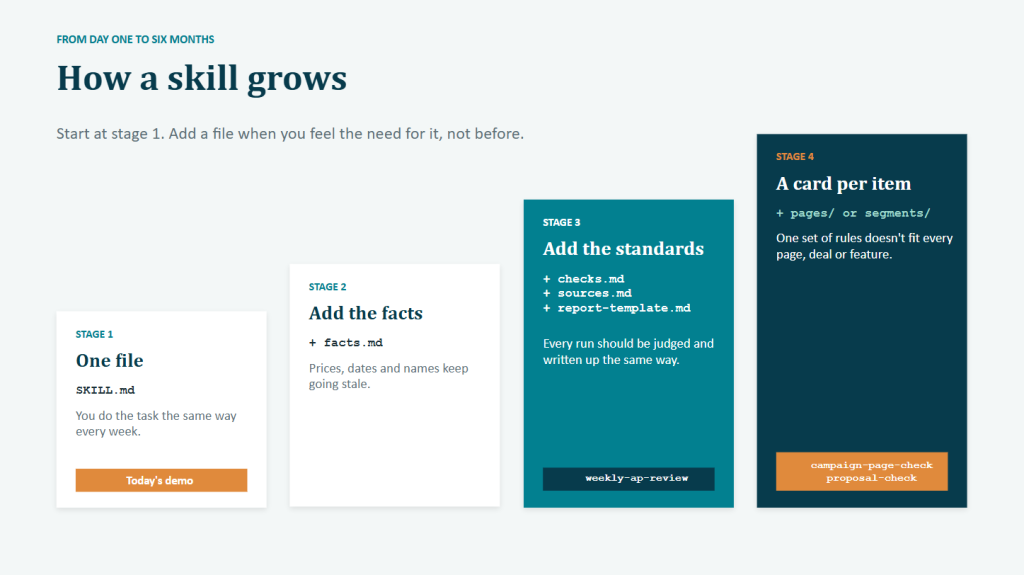
Only SKILL.md is required. The other files get added one at a time, when the need arises.
- Stage 1. SKILL.md on its own, for a task that is done the same way every week. The skill created live in the session was at this stage.
- Stage 2. A facts file, once the same facts keep going out of date inside SKILL.md.
- Stage 3. A checks file, a sources file and a report template, once every run needs to be judged and written up the same way.
- Stage 4. A card for each item, once one set of rules no longer fits every web page, vendor or customer group.
Once a team has more than a few skills, the skills themselves need organizing. The take-home library from the session shows one way to do it. Each skill does one task, such as reviewing invoices or checking a sales proposal. The skills sit in folders by department, here Marketing, Sales and Operations. A short README file lists every skill with its owner, its status and the date it was last updated. That makes it easy to see which skills exist, who looks after each one and which ones nobody has touched in months.
Our marketing team works this way. It uses a skill with this structure to check ODSC AI West web pages and campaigns. The take-home library includes a public version of the same structure for the fictional agency.
Every skill in the library also follows three habits.
- Every finding says why it matters, in one sentence about money, customers or risk.
- Unverified facts are marked. Anything that depends on them is reported as needing confirmation. The skill never approves or rejects it.
- Every change has an owner and a verdict. The verdict comes from a short fixed list, such as “ready for approval,” “hold” or “needs a decision.” That turns the output into a list of decisions for named people.
Connecting AI to your email, files and apps
The demos used a folder on a laptop. Most work lives somewhere else, in email, shared drives, Slack, customer databases and calendars.
A connector is the link between the AI and one of those systems. Each system helps answer a different question.
- Email shows what needs a follow-up.
- Slack shows what changed or what was decided.
- A shared drive shows what was written.
- A customer database, or CRM, shows which customer or deal is affected.
- A calendar shows when something has to happen.
A connector can only see what you can already see. If you cannot open a folder in Google Drive, neither can Claude. Settings inside Claude can limit a connector further. They can never give it more access than you have.
One inbox, one folder or one Slack channel is a sensible place to start. A small scope is easier to check.
Deciding what the AI is allowed to do
Giving an AI access raises an obvious question. What should it be allowed to do? Three levels of permission cover most cases, and each level matches a setting for the connector.
- Read. The AI looks things up and reports on them. For example, it pulls this week’s invoices or summarizes a Slack channel. Nothing outside changes. Setting: always allow.
- Draft. The AI writes something that a person sends or publishes later. For example, it writes a review document or leaves a reply in the drafts folder. Setting: allow, as long as nobody else sees the result first.
- Act. The AI does something other people or systems will notice. For example, it sends an email, pays an invoice, deletes a file or changes a customer record. Setting: needs approval, or blocked.
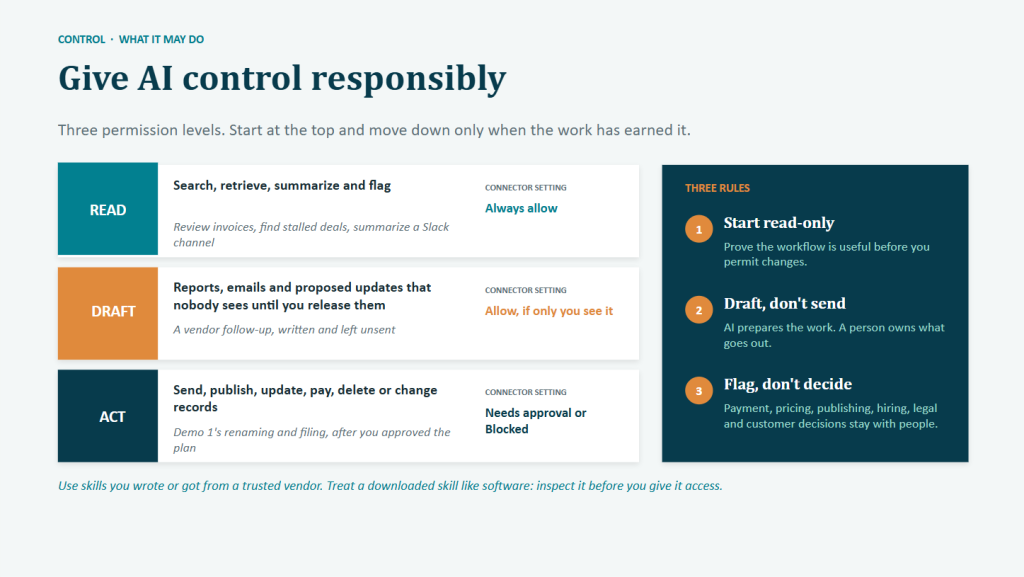
The first demo showed the act level used safely. Renaming and filing invoices changes things. So Claude showed its plan first, and nothing moved until the plan was approved.
A task that runs on a schedule is different, because nobody is there to approve anything. So scheduled tasks stay at the read and draft levels. In the third demo, the scheduled task read the new invoices, wrote a review and drafted emails to vendors. It did not move any files. It listed the filing it would do in the review, for a person to approve.
Deciding when the work starts
A recurring task needs a trigger. A trigger is whatever starts the work. There are four kinds.
- On demand. Someone asks for a run now. This suits first runs and anything important.
- On a schedule. The work runs at a set time, such as every Monday at 8 a.m. This suits reports, briefings and weekly reviews.
- On an event. Something happens, such as a file arriving or a deal changing stage. These triggers usually come from the apps or automation tools a company already uses.
- On request in a shared channel. A colleague asks the AI to do something in Slack.
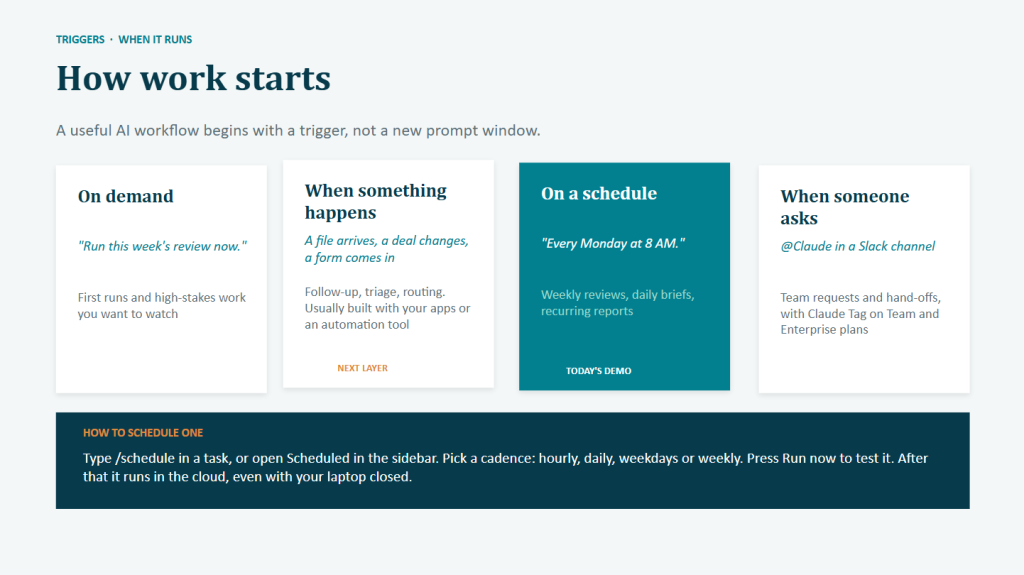
A schedule is the simplest trigger to set up. It is also the easiest to check, because the work arrives at a known time. That makes it a good choice for a first automation.
In Cowork, a scheduled task normally runs in the cloud. That means it runs even when the laptop is closed. A task that needs folders on the computer is the exception. It only runs while the computer is awake.
In the session, every task was run by hand and checked before it was put on a schedule.
One line from the session sums up how the pieces fit together. The schedule decides when the work runs. The connector decides where it can work. The skill decides how it behaves.
Using the same approach in ChatGPT and other tools
The session used Claude for two reasons. It’s extremely popular at the moment, and Cowork is the tool we use every week.
ChatGPT has the same building blocks under different names. Its connectors are called apps. It also has scheduled tasks and skills.
The approach itself works with any AI model. It comes down to a clear hand-off, one trigger, narrow access and a person who reviews drafts before anything goes out.
Choosing your first task to hand off
The session suggested a simple test for picking a first task. Good first tasks share four traits.
- The work repeats, every week or every month.
- The inputs live in files or email.
- Someone knows what a good result looks like.
- A mistake would be cheap and easy to catch.
The right task depends on the role. A product manager might start with the weekly status report. An operations lead might start with an expense review against the budget. A marketer might check campaign assets against the brief. A founder might start by sorting a cluttered downloads folder.
The task that annoys someone most is often the right one to start with. Annoyance usually means the work repeats and nobody has written down how to do it.
Recording and take-home materials
The recording shows all three demos from start to finish. Attendees also received three take-home resources.
- A try-it-yourself kit with the fictional company’s files and every prompt from the session.
- A one-page worksheet for writing a hand-off.
- A skills library with examples for marketing, sales and operations, plus a blank template.
The AI for Work Summit in New York
This webinar series covers one workflow per session. The AI for Work Summit continues the series in person.
The Summit runs on December 2 and 3, 2026, at the Jay Conference Center near Bryant Park in New York. It is built around hands-on workshops. Every session names the finished piece of work that attendees leave with.
The program has four tracks.
- Build
- AI in Your Workflow
- Lead
- AI Engineering Fundamentals
For anyone who left this webinar with a task in mind, AI in Your Workflow is the track to look at first.
Early Rate passes are $449 until Friday October 30. Reserve your pass at summit.ai.
This article originally appeared on Open Data Science.